To work with Kollmorgen Visualization Builder, do as follows:
Important! Be sure to use "Save" and not "Save As". The KVB is self-contained within the KAS archive and the Save As function moves the KVB out of the archive.
When you create the KVB panel with the KAS IDE, all the creation and mapping procedure is done automatically after compiling your project. So you can directly go to the Design the Panel.
Be aware that as soon as you change the PLC variables exported for the HMI, the mapping file must be re-imported in Kollmorgen Visualization Builder to have an up-to-date version.
This procedure is applicable when you use Kollmorgen Visualization Builder externally.
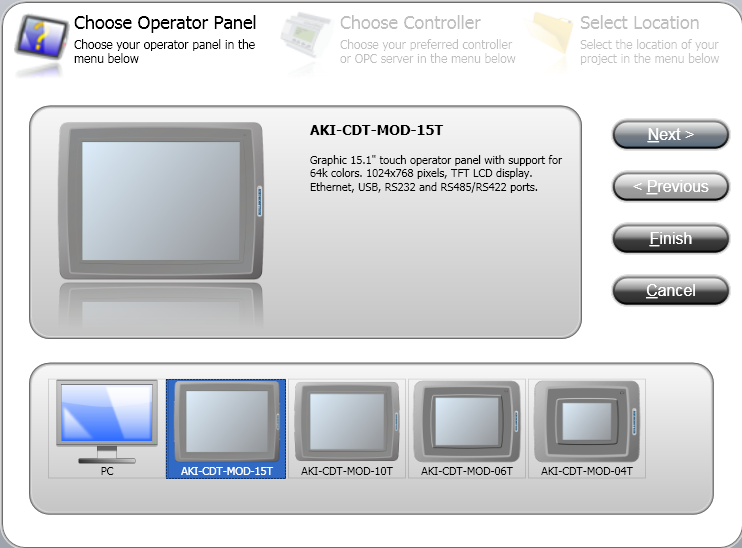
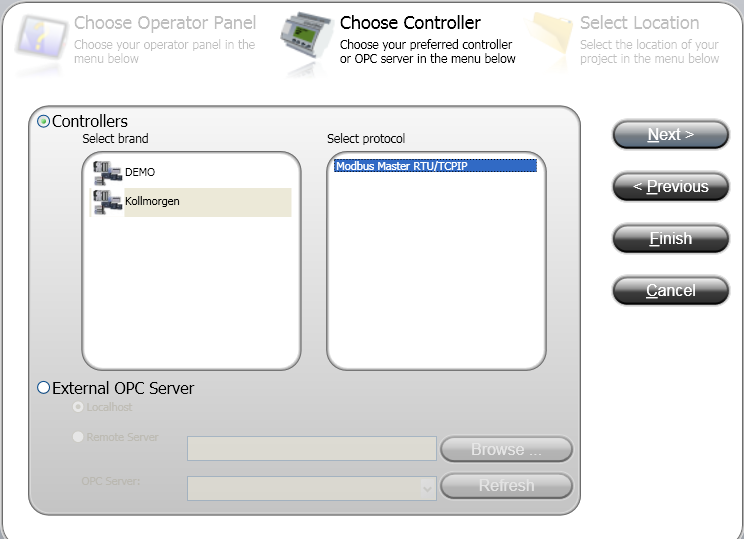
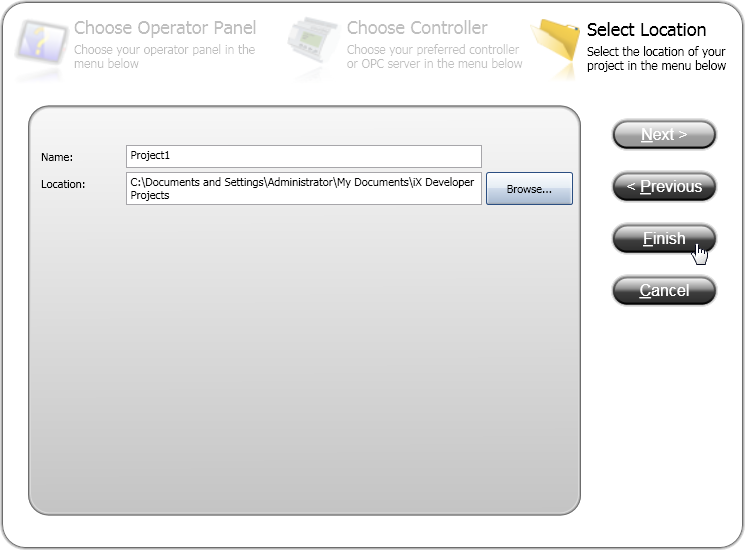
When you open the Kollmorgen Visualization Builder with your KVB panel (by double-clicking the KVB panel from the project explorer) all the variables tagged into the Dictionary are automatically imported into Kollmorgen Visualization Builder. Once the file is imported, all PLC variables are available for use within Kollmorgen Visualization Builder.
 See figure for more details about tag actions
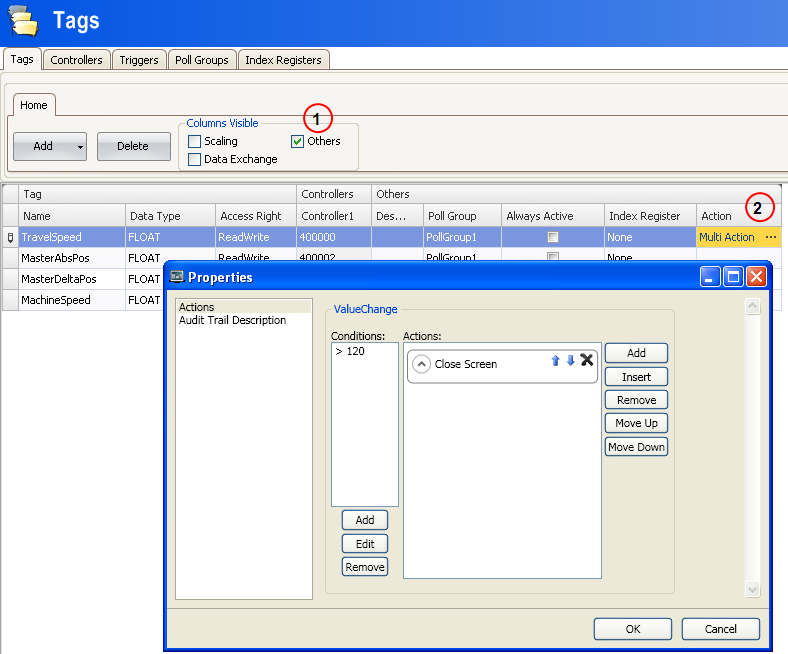
How to perform a manual importation?
To sort out the limitation stated above, you need to manually export/import the variables (tags) of your project.
The import procedure is as follows:
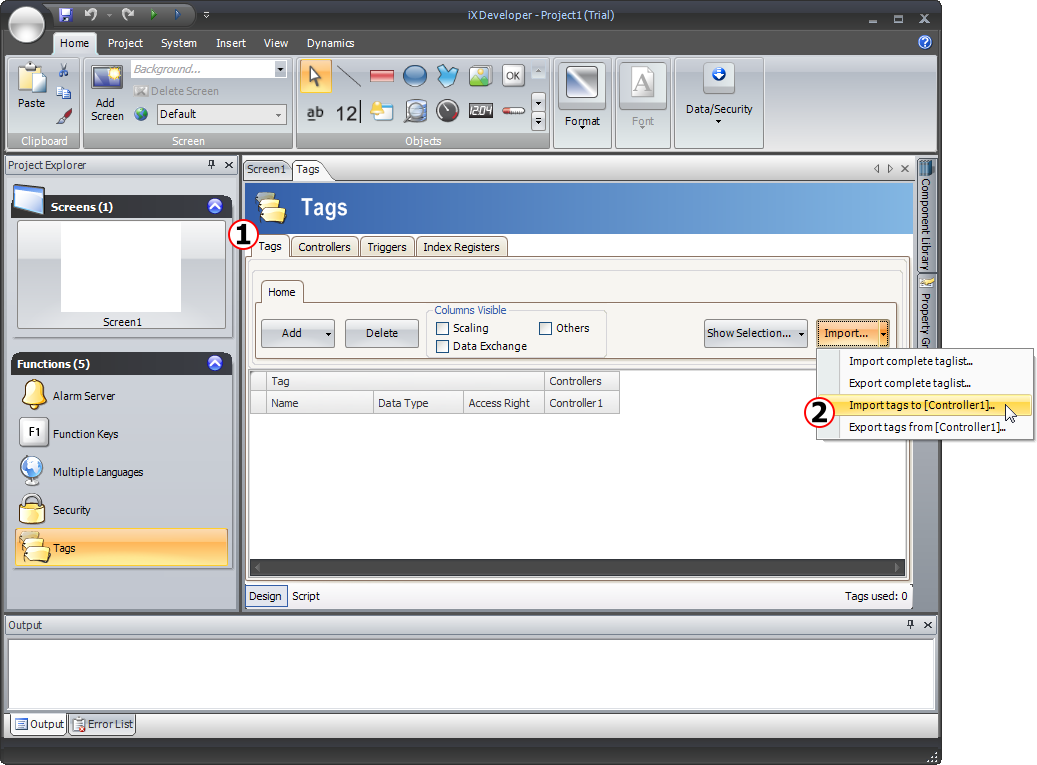
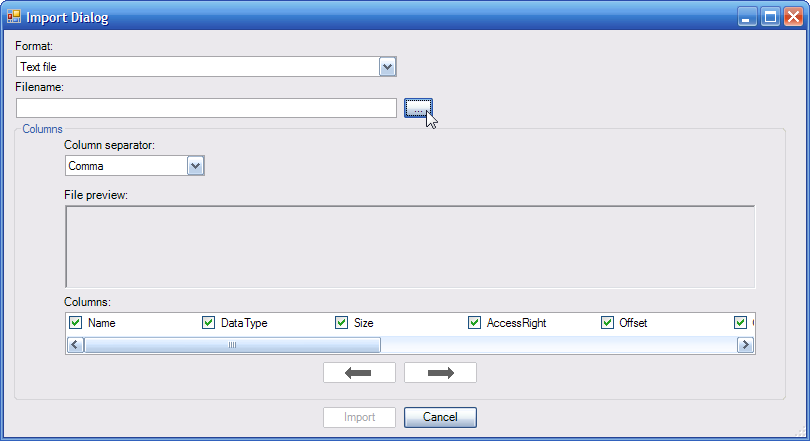
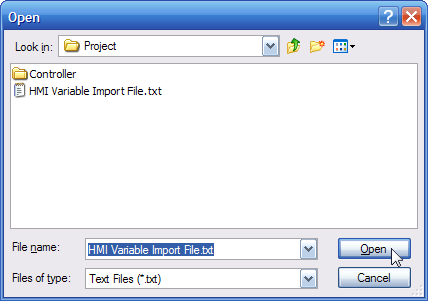
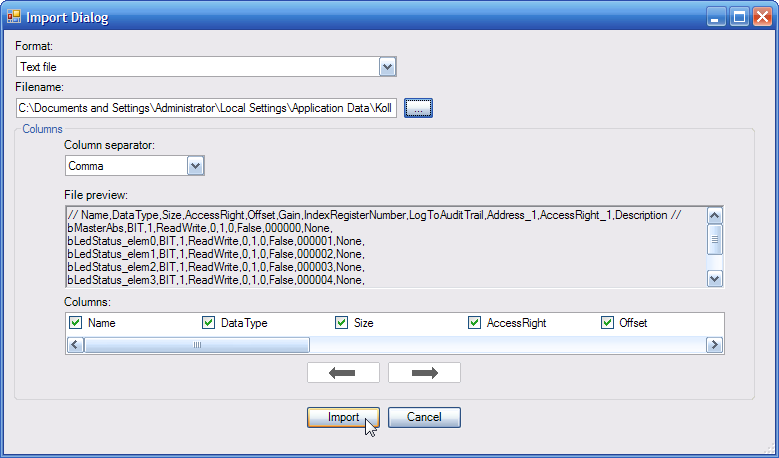
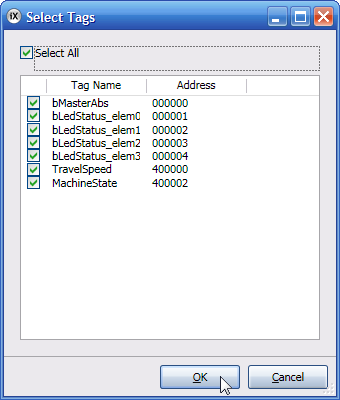
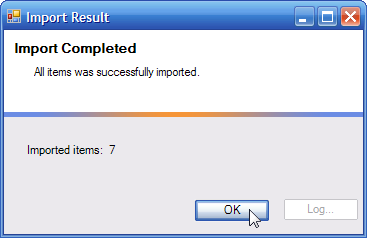
Do not modify Project Name and Title to keep consistency between Kollmorgen Visualization Builder and the KAS IDE.
You can drag-and-drop predefined objects from the library to the screen. The library is located in the Home tab of Kollmorgen Visualization Builder.
Select an object and click the General tab to customize:
In the General tab, you can set the Variable or Tag that maps to the current object in the Tag/Security section.
Click the F1 key to open the Kollmorgen Visualization Builder online help (or use the Help button in the ribbon tab heading)
Be aware that as soon as you change the PLC variables exported for the HMI, the mapping file must be re-imported in Kollmorgen Visualization Builder to have an up-to-date version.
To download your panel you have to use the Project ribbon in Kollmorgen Visualization Builder that contains the Transfer command .
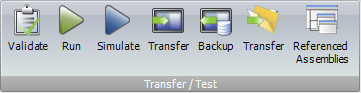
For more details, refer to the online help in Kollmorgen Visualization Builder
To download you must be connected directly to the HMI panel through an EthernetEthernet is a large, diverse family of frame-based computer networking technologies that operate at many speeds for local area networks (LANs) cable. As the IP address is already defined (for more details, Configure the Controller), nothing special has to be done before transferring your panel to the graphic operator terminal.
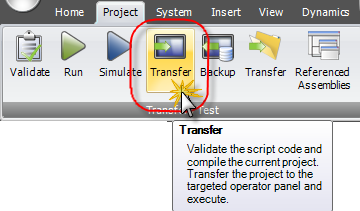
If you transfer your project on a USB"Universal Serial Bus" USB is a serial bus standard to interface devices stick, place it in the USB port of the AKI panel while it is booting up.
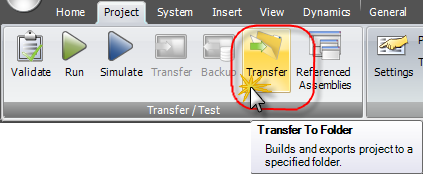
For an easy access, you can add a shortcut to the executable program on the desktop, or to the windows startup folder so it launches automatically when the PAC boots up.
For further information on Kollmorgen Visualization Builder, refer to the following manual:
| KVB Guide | Description | |
|---|---|---|
| Kollmorgen Visualization Builder™ Quick Start Guide | 
|
Quick Start that covers the most important points to install and use Kollmorgen Visualization Builder, in order to configure HMI Panels and PCPersonal Computer operated control applications, including applications for PACs |
| Kollmorgen Visualization Builder™ User Manual |
|
Contains all the content to help you with Kollmorgen Visualization Builder |
|
Stay Connected with Kollmorgen       
|
Copyright © 2015 Kollmorgen™ |

|